How To Clean A Computer Screen Safely: Step-By-Step Guide
Master the art of cleaning your computer screen without causing damage or streaks.
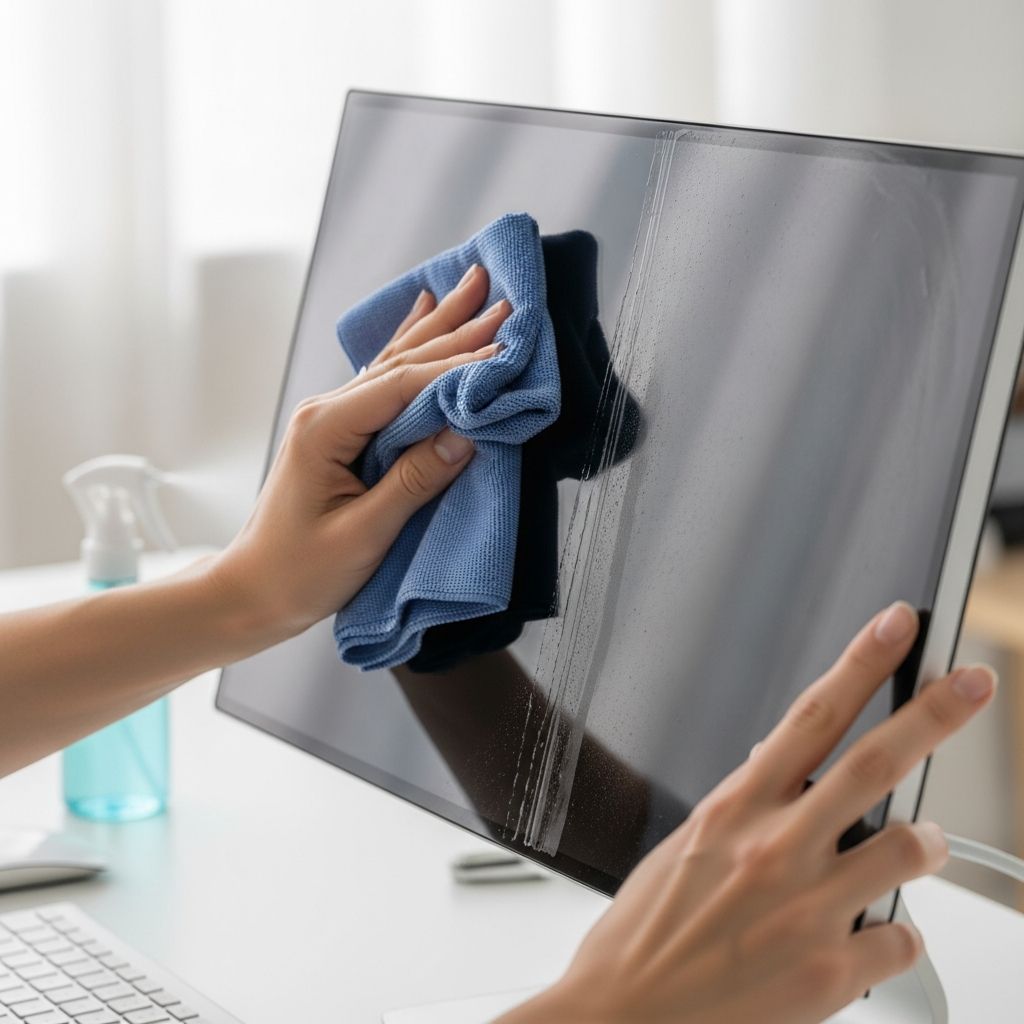
How to Clean a Computer Screen Safely
Your computer screen is one of the most-used surfaces in your home or office, which means it’s bound to accumulate dust, fingerprints, and smudges over time. Whether you’re working from home, gaming, or simply browsing the web, a clean screen makes a significant difference in your viewing experience and can even extend the lifespan of your monitor. However, cleaning a computer screen requires care and attention to avoid damaging the delicate display surface. This guide will walk you through the best practices and techniques for keeping your computer screen spotless without causing harm.
Why Proper Screen Cleaning Matters
Computer screens are sensitive electronic devices with protective coatings designed to enhance image quality and reduce glare. Using the wrong cleaning methods or materials can strip away these coatings, cause permanent damage, or leave unsightly streaks. Additionally, moisture seeping into the edges of your monitor can lead to internal damage and costly repairs. By following the right cleaning procedures, you not only maintain the visual quality of your screen but also protect your investment and ensure your monitor operates at peak performance for years to come.
Essential Supplies for Screen Cleaning
Before you begin cleaning your computer screen, gather the proper supplies. Using the right materials is crucial to avoid damaging your display.
Microfiber Cloth: Your Best Friend
The microfiber cloth is the gold standard for screen cleaning. These soft, lint-free cloths are specifically designed to gently remove dust and smudges without scratching the delicate display surface. Unlike paper towels, tissues, or regular cloths, microfiber cloths trap particles effectively and won’t leave lint behind. You can purchase microfiber cloths at most electronics stores, office supply shops, or online retailers. It’s a good idea to keep several on hand so you always have one available when needed.
Distilled Water
For more stubborn smudges and fingerprints, distilled water is your safest option. Distilled water is free from minerals and impurities that tap water contains, which means it won’t leave streaks or deposits on your screen. Never use tap water, mineral water, or any other type of water, as these can damage the display coating. When using distilled water, always apply it to your cloth first—never spray it directly onto the screen, as excess moisture can seep into the edges and cause internal damage.
Optional Cleaning Solutions
While a dry microfiber cloth and distilled water are typically sufficient, you have several other options for tougher cleaning jobs:
– Diluted vinegar solution (50% distilled water and 50% white vinegar) for VA monitors or particularly stubborn stains- Screen-safe electronics cleaning solutions specifically labeled for computer displays- Commercial electronics cleaning kits that include both appropriate cloths and solutions- Pre-moistened screen wipes formulated specifically for electronics
Pre-Cleaning Preparation
Taking a few minutes to prepare before you start cleaning can make the process safer and more effective.
Power Down and Unplug
The most important step is to turn off and unplug your monitor. A powered-on screen can be damaged by moisture and is also a safety hazard. Unplugging ensures there’s no electrical current running through the device, making it safe to clean. Allow the monitor to cool down for a few minutes after unplugging, as this also makes the cleaning process easier and safer.
Choose the Right Time and Place
Clean your screen in a well-lit area so you can see what you’re doing and identify any remaining smudges. Avoid cleaning near windows or in direct sunlight, as this can cause the cleaning solution to dry too quickly and leave streaks. Also, ensure your hands are clean and dry before touching the screen to avoid transferring dirt or oils.
Step-by-Step Cleaning Guide
Follow these steps for a safe and effective cleaning experience.
Step 1: Initial Dust Removal
Start by gently wiping away dust with a dry microfiber cloth. Work from the top of the screen downward, using light, circular motions. This initial dusting is important because it removes the outer layer of dust without introducing any moisture, and it makes the subsequent cleaning steps more effective. Pay special attention to the corners and edges where dust tends to accumulate.
Step 2: Gentle Wipe Down
Use the same dry microfiber cloth to gently wipe the entire screen surface. Apply minimal pressure—let the cloth do the work rather than pressing hard. Many times, this dry cleaning alone is sufficient to remove fingerprints and light smudges. The gentle circular motion helps lift particles away from the screen without causing scratches.
Step 3: Tackle Stubborn Marks
For smudges and fingerprints that don’t come off with dry cleaning, lightly dampen your microfiber cloth with distilled water. The cloth should be damp to the touch but not dripping wet. Wring out any excess water thoroughly before applying it to the screen. Using gentle circular motions, wipe away the stubborn marks. Be patient and use light pressure—aggressive scrubbing can damage the screen coating.
Step 4: Final Drying
After cleaning, allow the screen to air dry completely before turning it back on. This typically takes just a few minutes. If you used distilled water, you can speed up the drying process by gently wiping the screen with a dry microfiber cloth. Ensure no moisture remains at the edges or corners of the monitor before plugging it back in and powering it on.
Cleaning Methods for Different Monitor Types
Different monitor technologies may require slightly adjusted cleaning approaches.
IPS (In-Plane Switching) Monitors
IPS monitors, a type of LCD screen, offer wide viewing angles and accurate color reproduction, making them popular for design work and general computing. For these monitors:
– Use a dry microfiber cloth to remove dust first- For smudges, dampen the cloth slightly with distilled water- Avoid vinegar solutions unless absolutely necessary- Use gentle circular motions throughout the cleaning process
VA (Vertical Alignment) Monitors
VA monitors provide high contrast ratios and deep blacks, making them excellent for gaming and media consumption. When cleaning VA monitors:
– Start with a dry microfiber cloth for dust removal- For tougher spots, you can use a 50/50 mixture of distilled water and white vinegar on the cloth- This type of monitor can generally handle slightly more aggressive cleaning than IPS displays- Still maintain gentle pressure and circular motions
Matte Finish Screens
Matte finish monitors require extra care to preserve their special coating:
– Always start with a dry microfiber cloth- If necessary, very slightly dampen the cloth with distilled water- Avoid any solutions containing alcohol or vinegar- Be extra gentle to avoid disturbing the matte coating- Use minimal pressure and avoid vigorous scrubbing
What NOT to Use When Cleaning Your Screen
Knowing what to avoid is just as important as knowing what to use. Many household products can permanently damage your computer screen.
Harsh Chemicals to Avoid
– Window cleaners and ammonia-based solutions: These harsh chemicals can strip away the screen’s protective coatings and cause permanent damage- Household cleaning products: Bleach, disinfectants, and other general cleaners are too abrasive for delicate screens- Isopropyl alcohol: While sometimes recommended for electronics, it’s generally not recommended for computer screens as it can damage protective coatings- Eyeglass cleaner: Some eyeglass cleaners contain chemicals that may harm screen coatings
Materials to Avoid
– Paper towels: These can scratch the screen surface and leave lint behind- Tissues and toilet paper: These are too abrasive and will damage the screen- Newspaper: Ink from newspaper can transfer to your screen- Regular cotton cloths: These often leave lint and may not be gentle enough- Scouring pads or brushes: Any abrasive material will scratch the display
Tips for Streak-Free Cleaning
Nobody wants to clean their screen only to end up with streaks. Here’s how to achieve a crystal-clear finish:
– Use only distilled water, never tap water- Apply less moisture than you think you need—a barely damp cloth is best- Wipe in one direction first, then in perpendicular circles to avoid streaks- Allow the screen to air dry completely before use- Avoid wiping back and forth in the same spot repeatedly- Use a clean microfiber cloth each time; a dirty cloth will cause streaks- Ensure your hands are clean and dry to avoid transferring oils to the screen
Cleaning the Edges and Corners
Dust and debris tend to accumulate in the corners and edges of your monitor. Here’s how to clean these hard-to-reach areas:
– Use a soft-bristled brush to gently dislodge dust from corners- Follow with a microfiber cloth to wipe away loosened dust- For extremely stubborn debris, use compressed air to blow particles away- Never use sharp objects or apply excessive pressure to these areas- Be especially gentle around the edges to avoid damaging the bezel
Regular Maintenance Schedule
Keeping your screen clean doesn’t have to be a major undertaking if you maintain it regularly. Establish a cleaning routine to prevent heavy buildup:
– Weekly: Quick dust removal with a dry microfiber cloth- Monthly: More thorough cleaning with a slightly dampened cloth if needed- As needed: Spot-clean fingerprints and smudges immediately after they appear- Seasonally: Deep clean your monitor, including the edges, corners, and surrounding equipmentRegular cleaning prevents buildup and makes the process easier each time. A screen that’s cleaned weekly is much easier to maintain than one that’s neglected for months.
What to Do in Case of Spills
Accidents happen. If you spill liquid on your monitor screen, act quickly:
– Immediately unplug the monitor- Don’t panic—most spills won’t cause permanent damage if handled correctly- Gently pat the screen with a dry microfiber cloth to absorb liquid- Don’t rub or apply pressure, as this could force liquid into the screen- Allow the monitor to air dry completely (at least 24 hours) before plugging it back in- If the spill was significant, consider taking the monitor to a professional for inspection
Frequently Asked Questions
Q: How often should I clean my computer screen?
A: It depends on usage and environment. In a dusty environment, weekly cleaning is recommended. For average use, a monthly cleaning with a dry cloth and spot-cleaning as needed should suffice.
Q: Can I use eyeglass cleaner on my monitor?
A: It’s not recommended. Some eyeglass cleaners contain chemicals that may harm the screen coatings. Stick with distilled water and microfiber cloths for safety.
Q: What’s the difference between cleaning a laptop screen and a desktop monitor?
A: The cleaning methods are essentially the same. However, laptop screens may be more fragile, so extra caution is needed. Unplug and power off your laptop, then use a slightly damper cloth since laptops tend to attract more fingerprints.
Q: Is it safe to use compressed air on my screen?
A: Compressed air is acceptable for blowing dust away from corners and edges, but avoid using it directly on the main screen surface as the force can potentially damage delicate components.
Q: Can vinegar damage my screen?
A: A 50/50 mixture of distilled water and white vinegar can be used for tough cleaning jobs on VA monitors, but it’s not recommended for IPS or matte finish screens. Always dilute vinegar and use sparingly.
Q: Why is my screen still streaky after cleaning?
A: Streaks usually result from using tap water, applying too much moisture, or using a dirty cloth. Use distilled water, wring out excess moisture thoroughly, and ensure your cloth is clean.
Q: Should I clean my monitor while it’s on?
A: No, always turn off and unplug your monitor before cleaning. This is safer for you and protects your equipment from potential electrical hazards or damage.
Conclusion
Cleaning your computer screen doesn’t have to be complicated or risky. By using the right materials—a microfiber cloth and distilled water—and following the simple steps outlined in this guide, you can keep your display looking crystal clear without causing any damage. Remember to power off and unplug your monitor before cleaning, use gentle motions, and avoid harsh chemicals and abrasive materials. With regular maintenance, your screen will maintain its clarity and performance for years to come. Your eyes (and your monitor) will thank you for taking the time to care for this important device properly.
References
- How to Properly Clean Your Monitor Screen: Expert Tips (2025) — HP. 2025. https://www.hp.com/us-en/shop/tech-takes/how-to-clean-monitor-screen
Similar Articles






Read full bio of Sneha Tete