Why Is There a Line at the Bottom of My Phone Screen (and What Can I Do About It)?
Understand the mysterious line at the bottom of your phone screen—and when it’s normal, annoying, or a real problem.
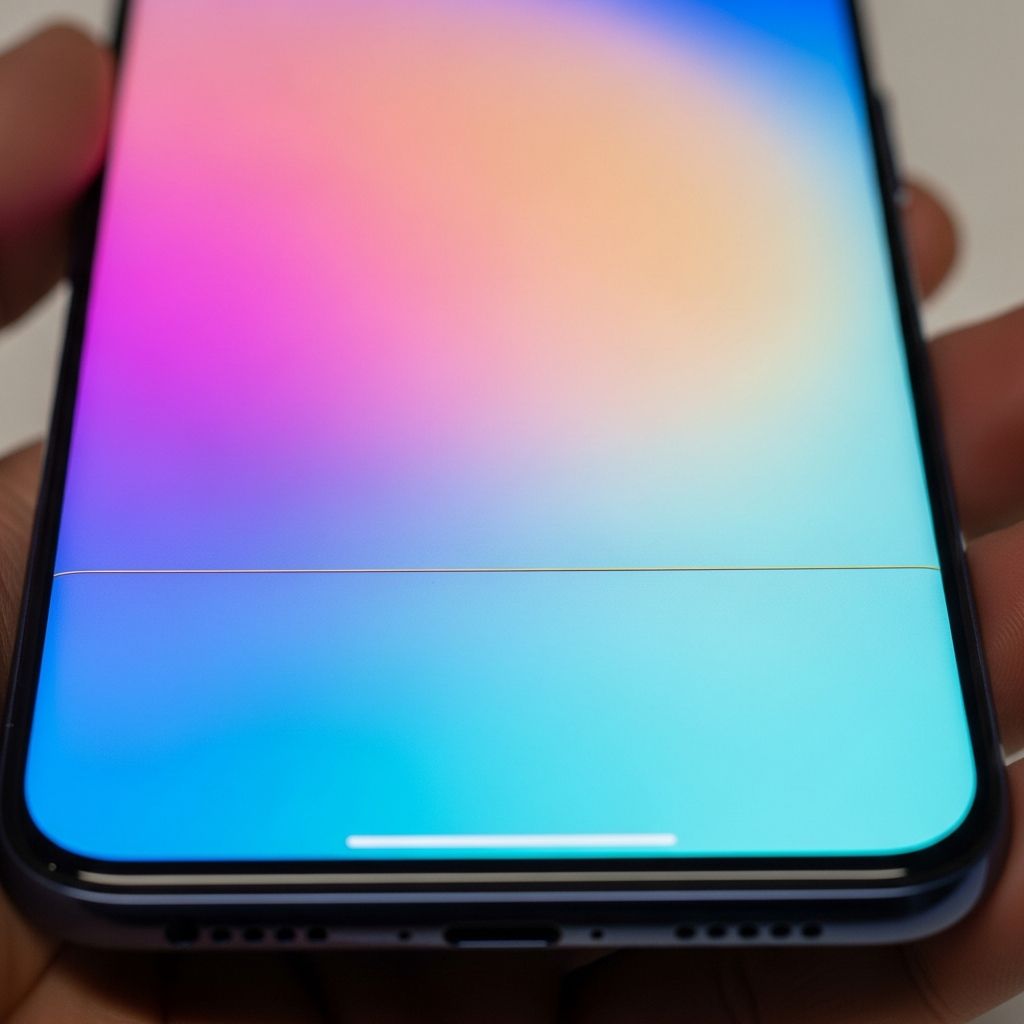
Seeing a line at the bottom of your phone screen can be confusing, especially when you do not remember dropping or damaging your device. In many cases, this line is completely normal and is part of your phone’s navigation design, but at other times it can signal a hardware or software problem that needs attention.
This guide explains the different types of lines you may notice at the bottom of your screen, how to tell harmless features from serious issues, and what practical steps you can take before contacting a repair service.
Types of Lines You Might See
Not every line looks or behaves the same. The first step in diagnosing the issue is to identify what kind of line you are dealing with and how it behaves during regular use.
- Static navigation bar or gesture bar: A short horizontal bar or icons that sit at the bottom and react when you swipe or tap.
- Thin solid line across the screen: A narrow line that stretches from side to side and does not respond to touch.
- Flickering or changing color line: A line that appears and disappears, or shifts between colors as content changes.
- Cluster of lines or band: Multiple lines close together, sometimes forming a thick band, usually indicating more serious display trouble.
Normal Navigation Indicators vs. Real Problems
Modern phones rely on visual indicators near the bottom edge for navigation, so not every line is a defect. However, when lines appear out of nowhere, it is worth investigating to avoid long-term damage or usability issues.
| Type of Line | Typical Cause | Normal or Problem? | What You Usually Notice |
|---|---|---|---|
| Short bar in the center | Gesture-based navigation indicator | Normal behavior | Used for swiping up to go home or switch apps |
| Row of icons (triangle, circle, square or similar) | Traditional three-button navigation bar | Normal behavior | Used for back, home and recent apps functions |
| Perfectly straight, thin line spanning the width | Display anomaly or connector issue | Potential problem | Stays in the same place across all apps and screens |
| Line that changes color or flickers | Screen damage, graphics glitch or panel failure | Likely problem | More visible on light or solid backgrounds |
| Thick band or multiple stacked lines | Severe display damage or hardware fault | Serious problem | May hide parts of the interface or make text unreadable |
How to Tell If the Line Is Just a Navigation Feature
Before assuming your screen is damaged, determine whether the line is there by design. Navigation bars and gesture indicators are expected elements in modern smartphone interfaces and usually cannot be removed entirely without changing how you control the phone.
Signs It’s a Normal Navigation Indicator
- The line disappears briefly when watching full-screen video or viewing photos, then reappears when you tap.
- The line changes shape or icons when you switch between gesture navigation and button navigation in settings.
- The line responds to swipes, allowing you to go to the home screen, open recent apps or go back.
Signs It May Be a Screen Issue
- The line is visible even on the lock screen and does not change with theme or navigation settings.
- The line cuts through content, such as text or images, and remains fixed as you scroll.
- The line appears after a drop, impact, water exposure or overheating event.
Quick Checks You Can Do in Minutes
Once you have a sense of the line type, run a few quick tests. These simple steps help separate cosmetic software quirks from genuine hardware trouble and often fix minor glitches with almost no effort.
- Restart your phone: A basic reboot clears temporary glitches in the display driver and user interface. Hold the power button, confirm restart and check whether the line is still there afterward.
- Take a screenshot: Capture the screen and view the image on another device. If the line appears in the screenshot, it points to a software or graphics issue; if not, it is more likely a hardware or panel problem.
- Open a plain background: Use a pure white, black or single-color wallpaper or image. A hardware-induced line will be especially obvious, while interface-only elements may vanish in full-screen modes.
- Check different apps: Open messages, the browser, photos and settings. If the line appears everywhere, it is not just an app-specific bug.
Adjusting Navigation Settings (If the Line Bothers You)
If the line is simply part of your phone’s navigation system but you find it distracting, there are usually ways to change how it looks or behaves by adjusting system settings. While you may not be able to remove it entirely, you can often switch to a layout that feels less intrusive.
On Many Android Phones
- Open the Settings app on your device.
- Look for menus related to System, Display or Gestures (names vary by brand).
- Find System navigation or Navigation bar.
- Choose between gesture navigation and three-button navigation, or toggle options to hide or minimize the bar when not in use.
On Gesture-Only Phones
Some devices rely fully on gesture navigation and show a persistent bar at the bottom to guide swipes. In these cases, the manufacturer may not provide an official way to remove the visual indicator because it plays a role in accessibility and usability.
When the Line Indicates Hardware Trouble
A solid, unresponsive line that will not go away is often a symptom of physical wear, internal damage or a failing display. Understanding common causes can help you decide whether home troubleshooting is enough or if you should head straight to a repair shop.
- Impact damage: A drop or strong pressure near the edge can damage the liquid crystal or OLED matrix, producing permanent bright or dark lines.
- Loose or damaged display connector: Internal flex cables can shift or partially detach, interrupting signal to a row of pixels and creating a horizontal line.
- Moisture exposure: Even small amounts of liquid entering near the charging port or buttons can corrode display contacts over time.
- Panel aging or manufacturing defects: In some cases, entire batches of screens develop line artifacts after prolonged use, even without visible physical damage.
Safe DIY Steps Before Visiting a Repair Shop
If you suspect a problem but your phone is still usable, there are a few software-focused checks you can try at home. These steps will not fix a cracked panel, but they may clear up issues caused by corrupt settings or misbehaving apps.
- Update your operating system: Install the latest software updates, which sometimes include fixes for display driver issues or interface glitches that can cause odd lines or artifacts.
- Boot into safe mode (on supported devices): Safe mode disables third-party apps, helping you see whether an app is triggering the line. If the line disappears in safe mode, uninstall recently downloaded apps one by one.
- Reset display-related settings: Revert custom themes, font changes, screen scaling and accessibility overlays, as these may sometimes interact poorly with specific apps or the system UI.
- Back up your data and consider a full reset: As a last software resort, a factory reset returns your phone to its original configuration. Always back up photos, contacts and files first, then test whether the line persists on a freshly set-up system.
When to Seek Professional Repair or Replacement
Once you have tried rebooting, adjusting navigation and checking for software issues, a persistent line usually points to a physical defect. At that stage, continuing to use the device without repair may lead to further display deterioration.
- Contact official support: Reach out to your phone manufacturer or carrier support for guidance on warranty status and approved service centers.
- Check your warranty and protection plans: Many devices come with limited warranties or optional protection programs that may cover screen defects or certain accidental damage scenarios.
- Get a repair quote: Compare the cost of a screen replacement with the value of your phone. In some mid-range or older models, replacement may approach the price of a new device, making an upgrade more practical.
- Avoid risky home repairs: Opening the phone without proper tools or experience can damage seals, worsen display issues and void any remaining warranty.
Preventing Future Screen Line Issues
While not every defect is avoidable, good habits reduce the risk of damage that leads to horizontal lines and similar display problems. Treating your phone as a delicate electronic device, rather than an indestructible accessory, goes a long way.
- Use a quality case and screen protector: Protective accessories help absorb shocks and prevent direct pressure on the glass and underlying display layers.
- Avoid extreme temperatures: High heat and severe cold can stress display materials and adhesives, increasing the chance of permanent lines or discoloration.
- Keep your phone dry: Even water-resistant models are not immune to long-term moisture damage, especially after previous drops or repairs.
- Handle cables gently: Yanking on charging or data cables can strain ports and connectors near the bottom of the phone, where display flex cables often run.
FAQs About Lines at the Bottom of Phone Screens
Can I completely remove the navigation line without breaking anything?
In most phones, you can change the navigation style, but you cannot entirely remove all on-screen navigation hints without losing important controls. Some custom launchers and system options minimize their appearance, but manufacturers typically keep at least a subtle indicator for usability and accessibility reasons.
The line appeared after I dropped my phone. Is it safe to keep using it?
A line that shows up right after a drop is often a sign of screen or connector damage. You may be able to continue using the device for a while, but the problem can spread or worsen over time, and touch responsiveness might eventually suffer. Backing up your data and planning for repair or replacement is strongly recommended.
The line shows in screenshots. What does that mean?
If the line is visible in screenshots viewed on other devices, the issue is related to how the phone is generating the image, not just how the screen displays it. This points toward software glitches, graphics driver problems or interface bugs, which are sometimes fixable through updates, resets or app removal.
Is there an app that can fix a hardware line on my screen?
Apps can test for dead pixels, show diagnostic patterns and help you identify the exact location and color of a line, but they cannot repair broken hardware. When physical damage to the display or its connectors exists, only professional repair or screen replacement resolves the issue permanently.
Will a screen protector hide or remove the line?
A screen protector may make minor lines slightly less noticeable, but it does not repair the underlying problem. If the display panel or connectors are damaged, you will still see the line under the protector, especially on solid backgrounds or when the brightness is high.
Key Takeaways
- Many lines at the bottom of a phone screen are normal navigation indicators and part of the phone’s design.
- Persistent, unresponsive lines that do not change with settings are more likely to signal display or connector problems.
- Simple checks like restarts, screenshots and safe mode help distinguish software glitches from hardware failures.
- When in doubt, backing up data and consulting professional repair services is the safest way to protect both your device and your information.
Similar Articles








Read full bio of Sneha Tete