
Beyond the Shoebox: A Modern Guide to Organizing and Protecting Your Photos
Turn scattered snapshots into a simple, searchable photo library you’ll actually enjoy.
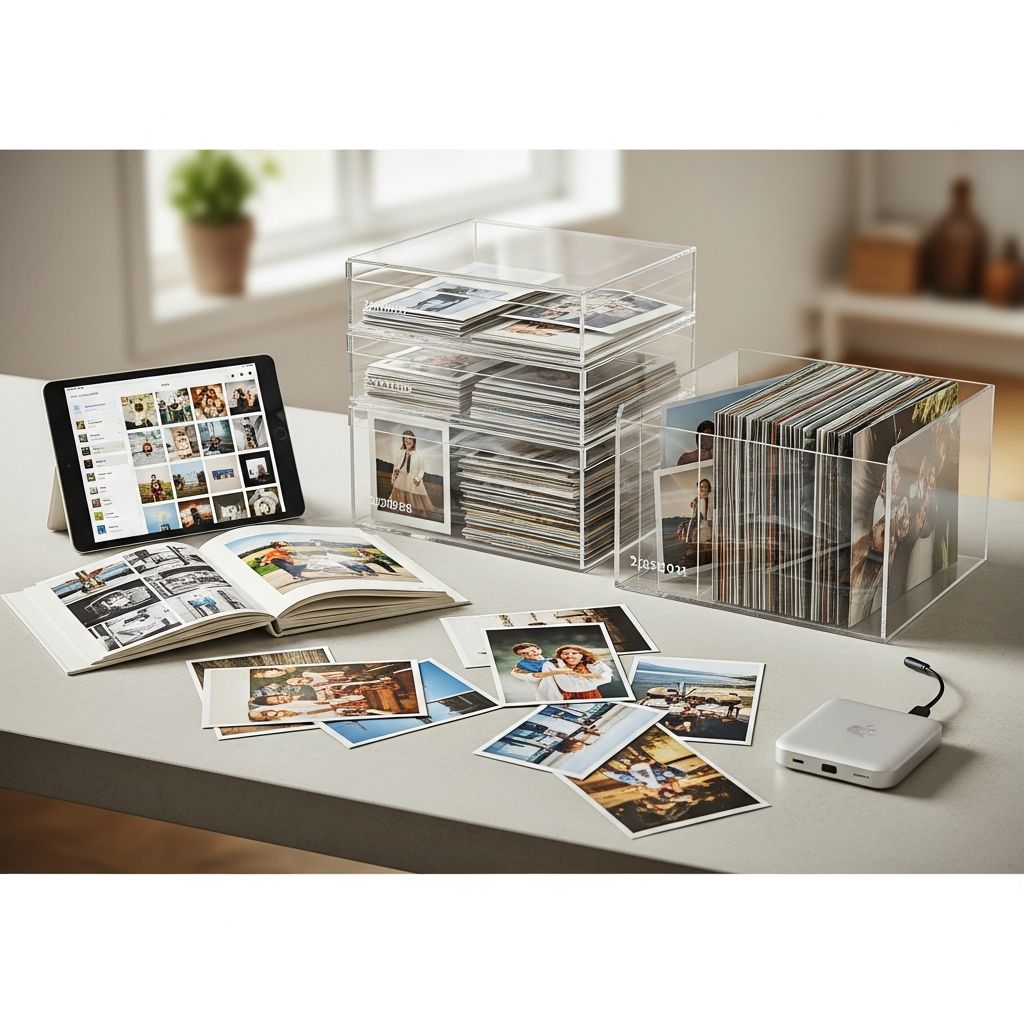
Photos are the visual diary of your life, but when they live in dusty boxes, cluttered camera rolls, or forgotten hard drives, they stop being memories and start becoming stress. With a thoughtful, step-by-step approach, you can transform scattered images into a streamlined collection that is safe, searchable, and easy to share.
Why Photo Organization Matters More Than Ever
Phones, cameras, and social media make it effortless to take photos but surprisingly hard to manage them. Most people have tens of thousands of images and very little structure, which leads to overwhelm and lost memories. A simple system protects your history, saves time, and makes it possible to revisit and share your favorite moments without scrolling endlessly.
Instead of thinking of this as a one-time “big project,” treat photo organization as a long-term habit. Once you set up a clear structure, small weekly or monthly check-ins will keep your collection tidy without much effort.
Step 1: Take Inventory of Your Photo Chaos
Before you organize anything, you need a realistic snapshot of what you own. Your photos are likely spread across multiple formats and locations, and gathering this information helps you choose the right system.
- Identify formats: printed photos, slides, negatives, photo albums, digital camera files, smartphone images, social media downloads, and scans.
- List storage locations: closets, basements, old computers, memory cards, USB drives, external hard drives, and cloud accounts.
Write this inventory down or store it in a simple note on your phone. The goal is not to count every single image but to understand the scope of your project and where the biggest problem areas are.
Step 2: Define Your End Goal Before You Start
Photo projects derail quickly when there is no clear destination. Decide how you want to interact with your photos in the future, then let that vision guide your decisions about what to keep, how to label, and where to store.
Ask yourself questions like:
- Do you want a simple digital archive, a set of printed albums, or both?
- Who needs access to the photos now and in the future (you, children, relatives, clients)?
- How often will you realistically look at or update your collection?
If your priority is quick access, you might favor structured folders and strong search tools. If your focus is legacy, you may emphasize long-term preservation, printed books, and clear labeling for future generations.
Step 3: Gather Everything Into One Staging Area
Trying to organize photos in multiple places at once is a recipe for duplication and confusion. Instead, create a staging area where you can see the full picture of what you have.
- For printed photos: Choose a clean, dry table or large surface where you can spread photos in piles without risking damage from food, drink, or sunlight.
- For digital photos: Create a temporary master folder on your main computer or external drive, and copy all digital photos and folders into it (without deleting originals yet).
This “all in one place” step can feel messy at first, but it dramatically reduces the risk of losing track of images as you refine your system.
Step 4: Create Simple Categories That Make Sense to You
Your categories do not need to be perfect or universal; they just need to be intuitive. Choose a high-level structure and then apply it consistently to both printed and digital collections.
Common top-level approaches include:
- Chronological: By decade, year, or month (for example, “1990s,” “2012,” “2023-08 Family Vacation”).
- People-focused: By person or group (for example, “Kids,” “Grandparents,” “Friends,” “Work”).
- Event-based: By major life events (for example, “Wedding,” “Graduation,” “Holidays,” “Travel – Europe”).
Many people use a hybrid system: chronological at the top level, with subfolders or labels for people or events. Start broad; you can always add more detail later if needed, but overcomplicated systems are harder to maintain.
Step 5: Declutter Ruthlessly (Without Guilt)
Keeping every photo actually makes it harder to find the images that matter most. Thoughtful decluttering is not about erasing the past; it is about curating the clearest, most meaningful version of it.
Remove photos that fall into these categories:
- Blurry, poorly lit, or accidentally taken shots.
- Near-duplicates where one clearly looks better than the others.
- Images of objects, paperwork, or random screenshots you no longer need.
- Photos that bring up memories you truly do not want to revisit.
For printed photos, set aside a discard pile to recycle or shred later. For digital photos, delete them once you are sure they are not needed, or move them into a temporary “Pending Delete” folder you clear periodically.
Step 6: Build a Logical Folder and Naming Structure
For digital photos, consistent naming and folder habits save enormous time later. Most systems do not require expensive software; your computer’s built-in file manager can work very well with a little discipline.
Consider a structure similar to this (adapt and rename as needed):
Photos202020212022
Inside each year folder, create event or month folders, such as 2022-06 Beach Trip or 2021-12 Holidays. Use a consistent date format like YYYY-MM-DD so folders sort in chronological order. Rename particularly important files to something descriptive (for example, 2022-06-15_family_beach_sunset.jpg) while leaving most other file names as the default camera output.
Step 7: Organizing Printed Photos Without Overwhelm
Printed photos require a slightly different workflow, but the same principles apply: group like with like, eliminate the obvious rejects, and store with intention. Work in small, defined batches rather than tackling every photo you own at once.
- Sort broadly first: Create temporary piles by decade, by life stage (childhood, college, early career, etc.), or by family branch.
- Refine within piles: Once a pile is manageable, sort into events or years and remove duplicates or damaged prints.
- Label as you go: Use sticky notes, index cards, or photo-safe pencils to write dates, names, and locations when you know them.
Consider which prints you want to scan. Prioritize irreplaceable originals, older family images, and your favorite milestones so they exist in both physical and digital form.
Step 8: Choose the Right Storage for Physical Photos
Safe storage is just as important as good organization. The wrong environment or materials can fade, warp, or stain your prints over time, even if they are neatly sorted.
| Storage Aspect | Better Choice | Risky Choice |
|---|---|---|
| Location | Climate-controlled room inside your home | Attic, basement, garage, or outdoor shed |
| Container | Acid-free, photo-safe boxes or albums | Old cardboard boxes, wood chests, or metal tins |
| Exposure | Stored away from direct sunlight and high humidity | Window ledges, damp closets, or near heaters |
| Handling | Clean, dry hands; optional cotton gloves for older prints | Touching emulsion with oily fingers, stacking without sleeves |
Use dividers, sleeves, or envelopes within boxes to keep categories separated and clearly labeled. If you must store photos in a less-than-ideal space, add an extra protective outer container with a tight seal.
Step 9: Smart Backup Strategies for Digital Photos
Digital images feel permanent, but they are vulnerable to hard drive failures, lost devices, accidental deletion, and account lockouts. A simple backup routine protects you from losing years of memories in a single mishap.
A widely recommended approach is to keep at least three copies of your photos:
- One main copy on your primary device or external drive.
- One local backup on a separate external drive stored in a different location in your home.
- One offsite or cloud backup using a reputable cloud storage or backup service.
Schedule automatic or recurring backups when possible so you do not rely on memory or motivation. Label your drives clearly and test them occasionally to ensure backups can be restored if needed.
Step 10: Make Photos Easy to Search and Enjoy
An organized archive is only useful if you can actually find specific memories when you want them. Modern tools make image searching far easier than flipping through random folders, especially when you add intentional metadata.
To make searching easier:
- Use face recognition features (in photo software or apps) and confirm names carefully.
- Add keywords or tags for recurring themes such as vacations, pets, school events, or holidays.
- Add short captions to especially important photos to record context that might be forgotten later.
Once your system is in place, build habits that showcase your photos: rotating digital frames, seasonal prints, yearly photo books, or curated albums shared with family members.
Simple Routines to Keep Your System Working
Without maintenance, even the best system can slide back into chaos. The good news is that small, regular habits prevent large, stressful clean-up projects later.
- Weekly: Delete obvious bad shots from your phone and move recent favorites into your main photo folders or app.
- Monthly: Import camera and phone images to your master library, assign them to the right folders, and run your backup.
- Yearly: Create a “Year in Review” album or book highlighting your top 100–300 photos to summarize the year.
Set calendar reminders or pair these tasks with existing habits, such as the first weekend of each month, to make consistency automatic rather than optional.
Creative Ways to Use and Share Your Photos
Once your photos are organized, they become raw material for meaningful projects, gifts, and decor. Using your images regularly reinforces the value of keeping them tidy and backed up.
- Create themed photo books for trips, milestones, or each child’s year-by-year growth.
- Design a gallery wall or rotating frame set that you update with new prints a few times a year.
- Assemble digital slideshows for birthdays, anniversaries, reunions, or memorials.
- Share curated albums with relatives who may not have copies of family events.
Think of your photo library as a living collection that supports storytelling and connection, not just a static archive hidden away on a hard drive.
FAQs About Organizing and Storing Photos
How do I start if I feel completely overwhelmed?
Begin with a tiny, clearly defined project, such as one shoebox of prints or one year of digital photos from your phone. Set a timer for 20–30 minutes, focus only on sorting and basic decluttering, and stop when the timer ends. Small, repeated sessions build momentum without burnout.
Should I scan every printed photo?
Scanning every single print is rarely necessary and can quickly become expensive and time-consuming. Prioritize irreplaceable family photos, older prints that are fading, and the images you love most or plan to share, then treat the rest as optional rather than mandatory.
Is it safe to rely only on cloud storage?
Cloud storage is a powerful tool, but depending on a single service introduces risk if you lose access to your account or the provider changes its terms. Combine cloud storage with at least one physical backup so you are not relying on any single point of failure.
What is the best format for long-term digital storage?
For everyday use, standard formats like JPEG are convenient and compatible with nearly all devices and apps. For particularly important images, consider keeping or exporting high-quality originals (such as RAW or high-resolution TIFF) and storing them in your master archive alongside more compressed versions for sharing.
How do I handle photos where I do not know the date or people?
If the image still feels meaningful, place it in a general “Unknown Date” or “Unlabeled Family” category rather than discarding it immediately. Over time, relatives or friends may help identify faces or approximate time periods, and even partial information can be added to captions or labels later.
What about screenshots and reference images on my phone?
Screenshots and temporary reference photos can clutter your main camera roll quickly. Set a weekly reminder to review and delete any that are no longer needed, and move important reference images into a separate folder or note so they do not mix with your personal memories.
Bringing It All Together
The key to a sustainable photo organization system is simplicity. Choose a clear structure, commit to regular small sessions, protect your collection with smart storage and backups, and then actually enjoy your photos through displays, books, and shared albums. Your future self—and your family—will be grateful that your stories are easy to find, revisit, and pass on.
Similar Articles








Read full bio of medha deb