The Smart Phone Reset: A Complete Guide to Decluttering and Organizing Your Digital Life
Turn your cluttered phone into a calm, focused, and productive space.
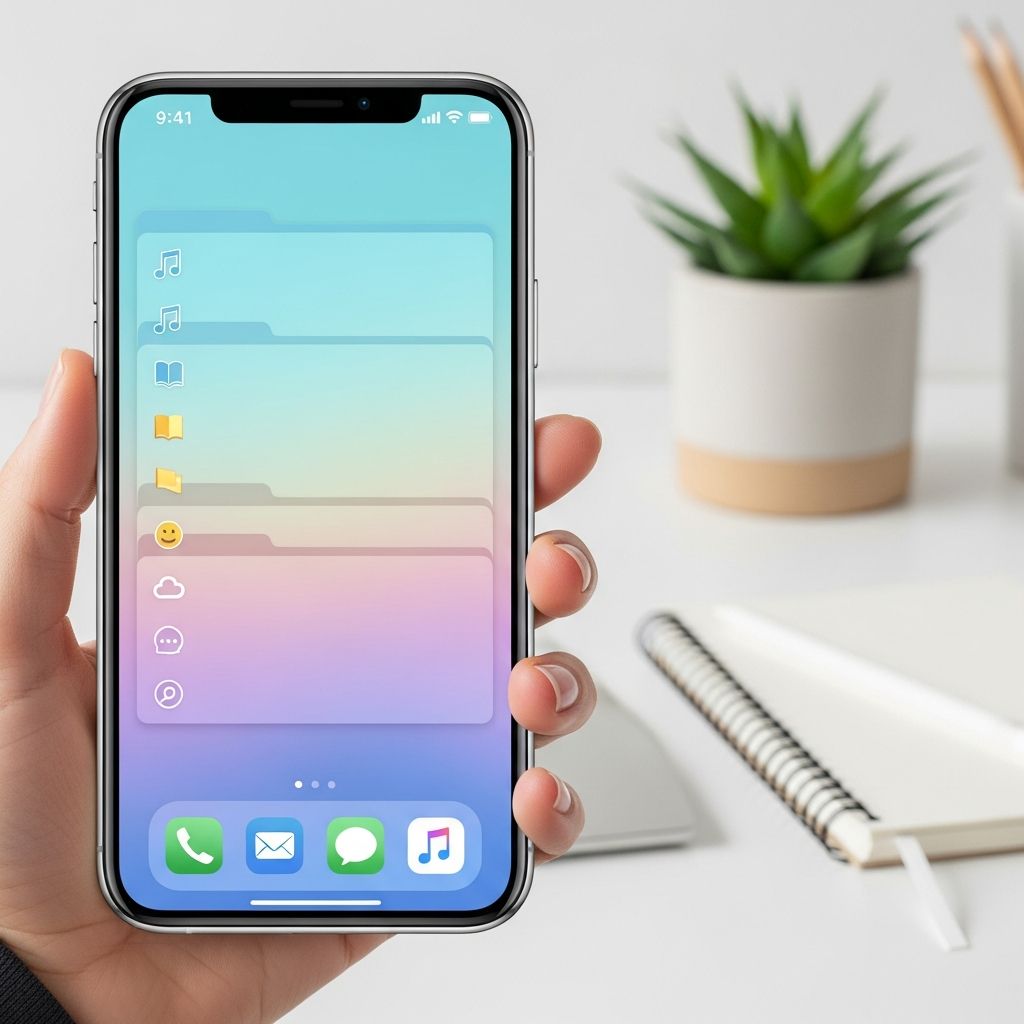
Your phone can be a powerful tool for focus and productivity, or a cluttered, distracting mess. The difference usually comes down to how well it is organized. This guide walks you through a complete “phone reset” so your device becomes calmer, faster, and genuinely helpful.
Why Phone Organization Matters More Than You Think
Most people unlock their phones dozens or even hundreds of times a day. Each time you see a wall of apps, random notifications, and digital clutter, your brain has to work harder than it should. Over time, this adds up to more stress and less focus.
- Cluttered phones encourage mindless scrolling and procrastination.
- Organized phones make it faster to find what you need and easier to ignore what you don’t.
- Intentional layouts can support your goals, like saving money, exercising more, or staying in touch with family.
Step 1: Define Your Ideal Phone Experience
Before you start deleting apps and rearranging icons, decide how you actually want to use your phone. Organization works best when it supports your real life, not an abstract ideal.
Ask yourself these questions and jot down quick answers:
- What do I want my phone to help me do more of? (Examples: reading, creating, learning, staying organized.)
- What do I want my phone to help me do less of? (Examples: social media, impulsive online shopping, late-night scrolling.)
- How do I feel when I use my phone now, and how do I want to feel instead?
Keep those answers in mind. They will guide every decision you make in the next steps.
Step 2: Perform a Focused App Audit
Apps are usually the biggest source of digital clutter. A focused audit will help you decide what stays, what goes, and what should be hidden out of sight.
Sort Apps Into Simple Categories
Go screen by screen and quickly tag each app with one of these three labels:
- Essential – Used daily or almost daily, important for work, health, safety, money, or communication.
- Useful – Not daily, but genuinely helpful when needed (travel, banking, reference, utilities).
- Distracting or obsolete – Games, social media, old shopping apps, or anything you rarely open.
Delete and Hide Ruthlessly
Once everything is tagged, clear space immediately:
- Delete any app you haven’t used in the last 60–90 days, unless it’s clearly for emergencies or rare but essential tasks.
- Uninstall duplicate apps that do the same thing (for example, multiple note apps or photo editors).
- Move high-distraction apps off your main screens or restrict their usage with built-in device controls.
If deleting feels hard, remind yourself you can always reinstall later. The goal is to test what life feels like with less digital noise.
Step 3: Design a Calm Home Screen Layout
Your home screen is like the front door of your digital life. It should feel calm and intentional, not chaotic. Think of it as a dashboard, not a junk drawer.
Choose a Layout Philosophy
Pick one of these simple layout strategies and stick to it for at least a few weeks:
- Goal-based: Only keep apps on the home screen that support your top goals, like fitness, finances, or learning.
- Category-based: Group apps into a small number of clear folders: Work, Home, Money, Health, Social, Tools.
- Minimalist: One or two rows of icons, plus a dock. Everything else lives in the app drawer or on another page.
Place Apps Intentionally
Within your chosen layout, be deliberate about placement:
- Put the most important apps where your thumb naturally rests.
- Keep a single folder or row for “Quick Actions” like maps, camera, calendar, and messages.
- Reserve the dock for your four most-used, low-distraction tools (for example, phone, messages, calendar, notes).
Step 4: Use Folders and Labels That Actually Make Sense
Folders are powerful, but only if they are few, clear, and consistent. Avoid having a dozen vague folders that make you think harder instead of faster.
Limit the Number of Folders
Start with 5–8 well-defined folders. Example structure:
- Work & School – Email, project tools, office apps, learning platforms.
- Money – Banking, budgeting, investing, digital wallets.
- Home & Family – Smart home apps, shopping lists, family messaging.
- Health & Fitness – Workout, meditation, nutrition, sleep.
- Social & Fun – Social networks, messaging, games, streaming.
- Travel & Maps – Rideshare, maps, airline, hotel apps.
- Utilities – Calculator, scanner, authenticator, file manager.
Naming Tricks for Faster Scanning
To make folders easy to recognize at a glance:
- Use short, action-oriented labels like “Create,” “Plan,” or “Move” instead of long phrases.
- Place the most-used folder in the same spot on every screen so your muscle memory kicks in.
- If your system allows, choose simple icons or colors associated with the folder’s purpose.
Step 5: Tame Notifications and Reduce Constant Pings
Even a well-organized home screen can’t help if your phone never stops buzzing. Thoughtful notification settings are essential for a calmer, more focused day.
Sort Apps by Notification Priority
Open your notification settings and assign each app a role:
- Critical: Calls, emergency alerts, 2-factor authentication, maybe messages from close family.
- Important: Work chat, calendar, banking alerts, delivery updates.
- Nonessential: Social media, most shopping apps, general news, game alerts.
Adjust Settings to Match Real Life
Once everything is categorized, update notification behavior:
- Allow full alerts (sound and banner) only for critical apps.
- Change important apps to quieter modes like badges or summary digests.
- Turn off nonessential notifications completely, or restrict them to specific time windows.
Many phones offer “focus” or “do not disturb” modes. Create presets like Work, Family Time, Sleep, or Deep Focus to switch contexts quickly.
Step 6: Declutter Photos, Videos, and Screenshots
The photo library is often where digital clutter explodes. Thousands of images, duplicates, and meaningless screenshots make finding important memories hard and fill up storage.
Create a Simple Photo Maintenance Routine
Instead of trying to clean up years of photos in one weekend, build a manageable habit:
- Once a day or a few times per week, delete obvious junk: duplicate selfies, accidental shots, temporary screenshots.
- At the end of each month, create an album like “Favorites – [Month Year]” and add your best photos.
- Use automatic backup to a cloud service so memories stay safe even if your phone is lost or damaged.
Use Albums and Tags Thoughtfully
You don’t need dozens of albums, just a clear structure:
- Create a few recurring albums such as Family, Friends, Work, Travel, and Projects.
- Make event-based albums for big trips, weddings, or holidays, then archive them when no longer needed on the main view.
- If your photo app supports it, use tags or favorites to mark images that are meaningful or needed for work.
Step 7: Organize Files, Notes, and Downloads
Behind the scenes, your phone also stores documents, PDFs, downloads, and notes. Without a clear system, these become scattered and hard to find.
Build a Simple Folder Framework
Use your file manager or cloud storage app to create a small, logical folder tree. For example:
| Main Folder | Subfolders | What Belongs There |
|---|---|---|
| Work | Projects, Clients, Reports | Presentations, spreadsheets, PDFs, meeting notes. |
| Personal | Documents, Finances, IDs | Scans of IDs, bills, contracts, personal records. |
| School | Courses, Assignments | Lecture slides, assignments, readings. |
| Receipts | Shopping, Travel, Subscriptions | Photos or PDFs of purchases and bookings. |
Standardize Naming and Capture Habits
To avoid losing files later:
- Use clear file names like “2025-01-rent-receipt” or “project-proposal-client-name”.
- When downloading a file, move it to a proper folder right away instead of letting it sit in “Downloads”.
- Centralize notes in one main app and create a few core notebooks or tags such as Inbox, Ideas, Tasks, and Reference.
Step 8: Optimize for Focus and Well-being
A well-organized phone is not just about neat screens; it is about how your device makes you feel day to day. Small settings changes can significantly improve your focus and mood.
Adjust Visual and Behavioral Cues
Consider these adjustments:
- Choose a calm, simple wallpaper with minimal visual noise.
- Remove red or attention-grabbing widgets from your main screen.
- Disable badge counts for apps that trigger anxiety, like email or social media.
Use Built-in Digital Well-being Tools
Most modern phones include features to monitor and limit usage:
- Set app time limits for your biggest time-wasters.
- Schedule screen downtime during meals, before bed, and first thing in the morning.
- Review weekly usage reports and adjust your layout or habits if distractions creep back in.
Step 9: Create a Maintenance Routine That Actually Sticks
Organization is not a one-time event. A light, regular routine is more sustainable than massive cleanups every year.
Weekly and Monthly Check-ins
Use short, predictable maintenance sessions:
- Weekly (5–10 minutes): Delete new unused apps, clear recent screenshots, empty trash, review notifications.
- Monthly (15–20 minutes): Revisit your home screen, adjust folders, back up photos, archive old notes.
- Seasonal (30–45 minutes): Deeper cleanup of files, major photo pruning, and reviewing which apps still support your goals.
Make Organization Automatic
Layer small habits into your normal phone use:
- Delete an app as soon as you realize you do not use it.
- Move new downloads or photos into folders right after you create them, when possible.
- Whenever you unlock your phone out of boredom, use that moment to tidy one small thing instead.
Step 10: Transform Your Phone Into a Life Management Hub
Once your phone is decluttered, you can intentionally turn it into a hub that supports your plans and routines rather than derailing them.
Build Systems, Not Just Screens
Think about the workflows your phone can streamline:
- Use a calendar and reminders system to handle due dates instead of keeping them in your head.
- Capture tasks and ideas in a single, trusted notes or to-do app instead of scattered sticky notes and screenshots.
- Connect related apps where possible (for example, linking your task app with your calendar or email).
Align Your Digital Space With Your Values
Finally, step back and look at your new setup. Ask:
- Does my home screen reflect what is most important to me right now?
- Are the easiest apps to reach the ones that genuinely improve my life?
- Is there anything still on my phone that pulls me away from my priorities more than it helps?
Adjust as needed. Your phone should evolve with you, staying tidy and purposeful as your life changes.
FAQs About Organizing Your Phone
How often should I reorganize my phone?
A light weekly check-in and a deeper review every few months works well for most people. You don’t need to overhaul everything frequently, but you should remove obvious clutter and update layouts when your routines or priorities change.
Is it better to organize apps by category or by frequency of use?
Both methods work; the best choice depends on how your brain works. If you think in tasks and topics, category-based folders may feel natural. If you prefer speed and habit, arranging apps by how often you use them and relying on search can be more efficient.
What should I do with apps I rarely use but still need?
Place them in a clearly labeled folder on a secondary screen or in the app drawer, where they are available but do not crowd your main view. You can also rely on the phone’s search function instead of giving these apps permanent visual space.
How can I stop checking my phone so often?
Combining organization with behavior changes is key. Move tempting apps off the first screen, use focus or do-not-disturb modes, set app time limits, and choose a home screen that is visually calm instead of stimulating. Small friction points can dramatically reduce mindless checks.
Do I really need to back up my phone before decluttering?
While it is not strictly required, backing up your data is strongly recommended. A complete backup protects your contacts, photos, and important files so you can declutter confidently, knowing you can restore anything truly essential later.
Similar Articles



Read full bio of Sneha Tete